
SetXRM Meet Usage
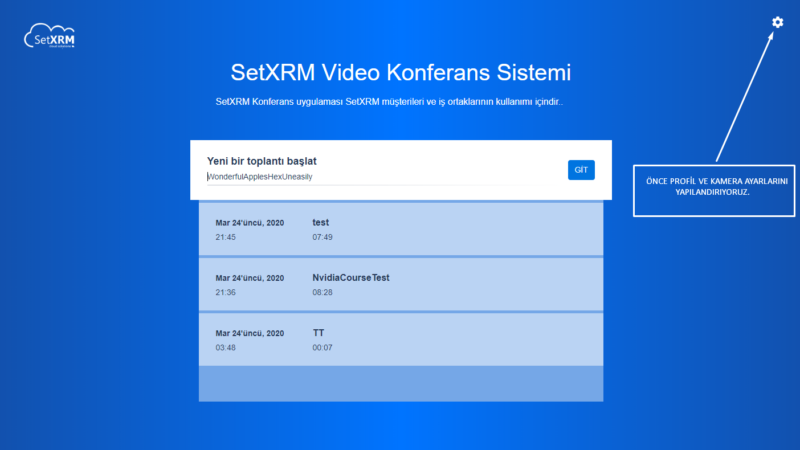
Before starting a meeting on SetXRM Meet, we need to configure the device and profile settings.
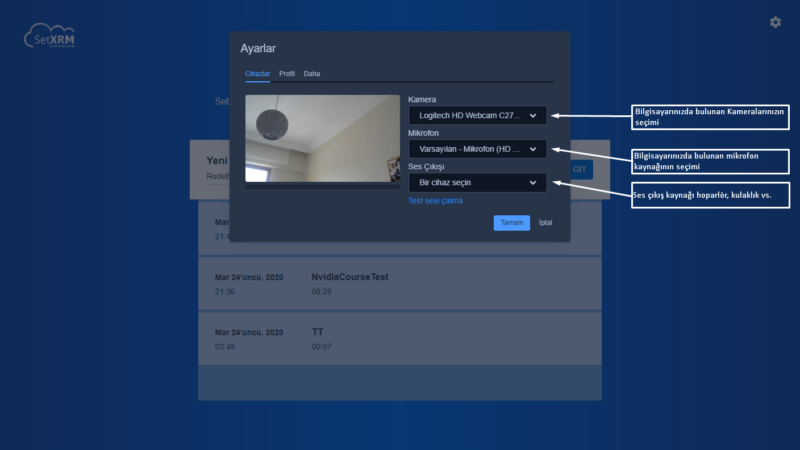
The camera and microphone lists in the device settings show all cameras and microphones on your computer; select the device you want to use, then proceed to the profile settings.
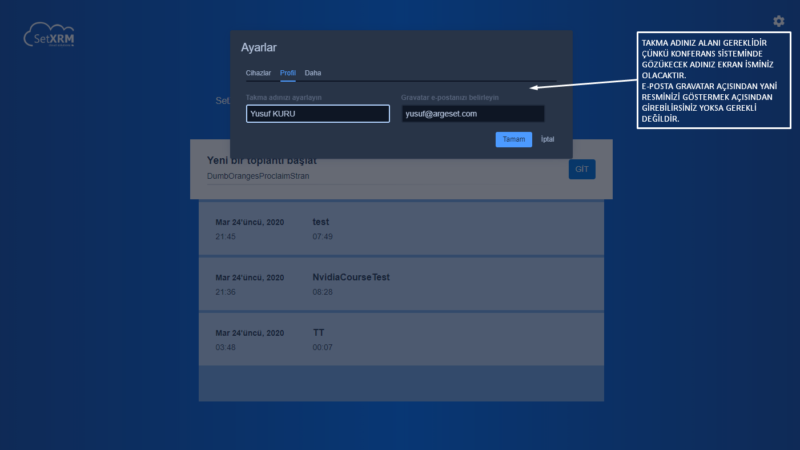
The only required field in your profile settings is “Set your nickname”.
This field represents your name in the meeting.
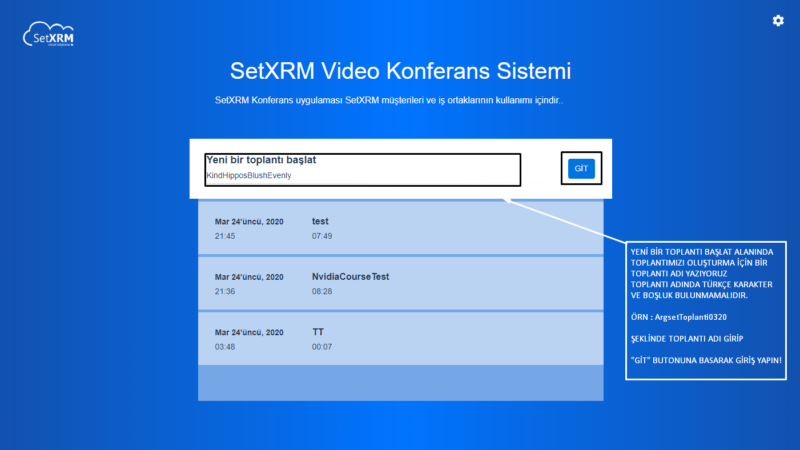
To start a meeting, enter a meeting name without Turkish or special characters in the specified field (e.g. ArgesetToplanti0320), and then click the “GO” button.
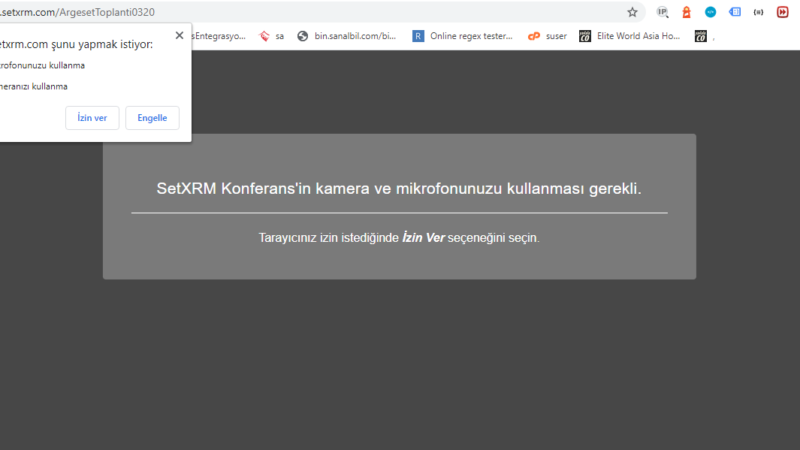
When joining the meeting, you must first grant Camera and Microphone permissions; if you cancel or decline, no video or audio will be transmitted in the meeting.
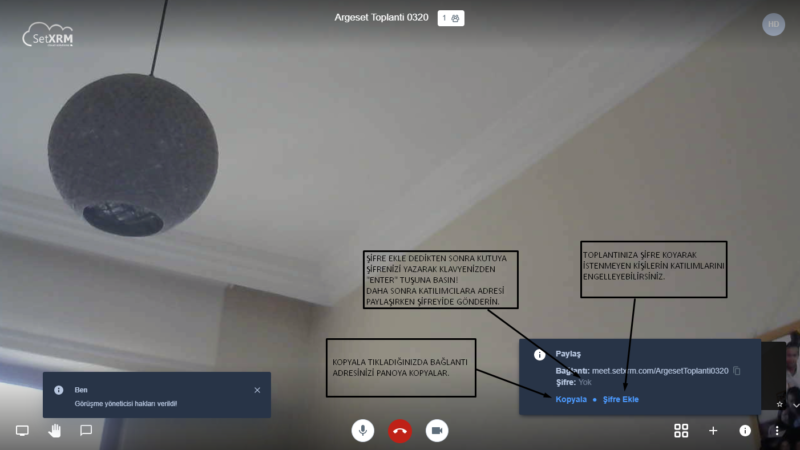
To encrypt your meeting on the meeting screen, click Add Password , then type your password in the box on the left and press the Enter key on your keyboard; your stream will be encrypted.
After that, click Copy to copy the connection link to your clipboard, and you can then share the link from any application you like, such as Whatsapp, Outlook, etc.
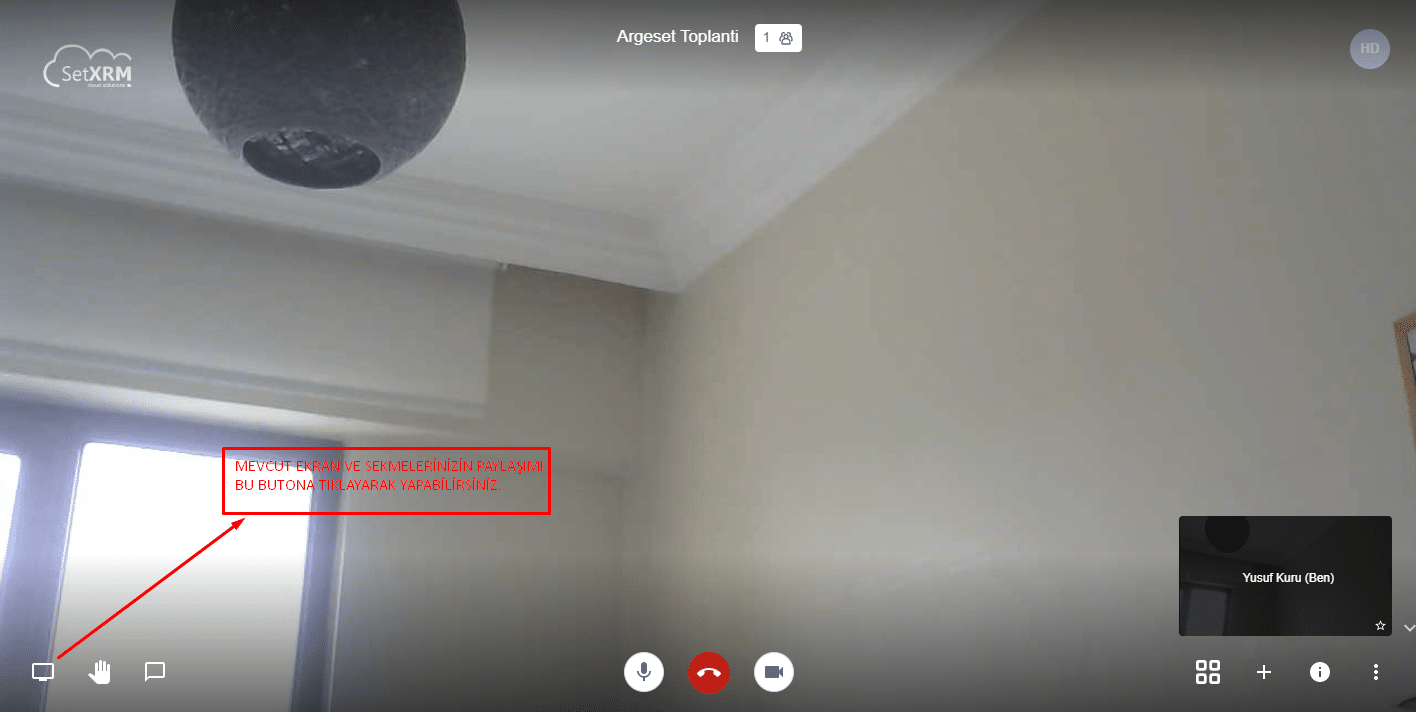
You can easily share your screen during your meeting.
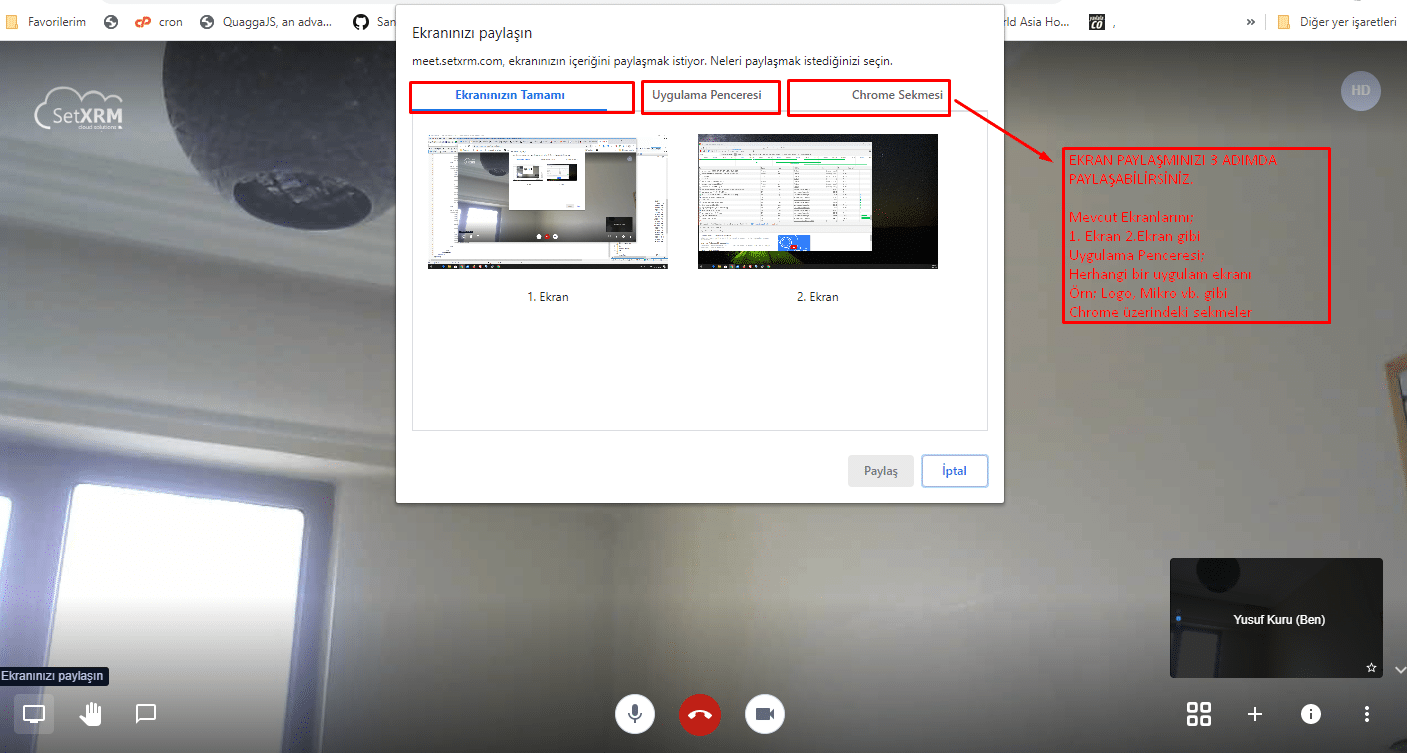
You can share your screen in your meeting in 3 steps:
Entire Screen – Detects all screens connected to your computer and lets you choose which one to share.
Application Window – Detects all applications currently open on your desktop, such as logo, mikro, outlook, etc., so you can share the application of your choice.
Chrome Tab – Lists all tabs open in Chrome; simply select the tab you want to share and click Share.
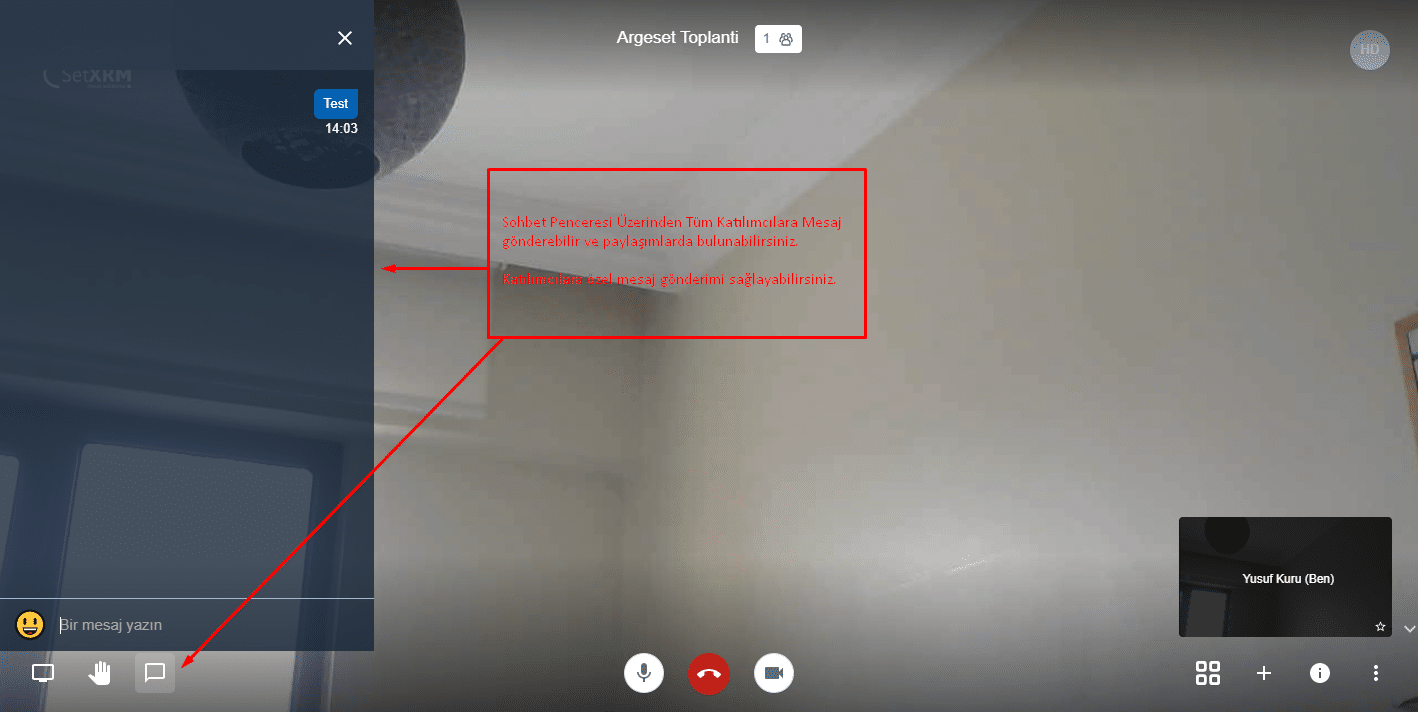
You can text chat with your participants during the meeting:
The message you type in the chat window is visible to all participants;
If you want to send a private message to a specific participant, click the … dots at the top right of the participant’s screen box and choose the send private message option to send that participant a private message.
You can also join the meeting from mobile devices.
The first thing you need to do is download and install the “Jitsi Meet” app on your device.
Uygulama Linkleri;
| ANDROID | iOS |
 |  |
SetXRM Konfreans Sistemi
Your security and that of your participants is protected by a high-level encryption system.
The conference stream you create is encrypted throughout the meeting and is never recorded in any way.
When you end the meeting stream, the stream name you created is automatically deleted and made available for use by other users.
Thank You for Choosing Us…
