
SetXRM Meet
SetXRM Meet User Guide
Secure, high-quality video meetings in the browser – no installation needed. Explore the screens in the interactive tour below, then follow the step-by-step guide.
Interactive tour
Explore the SetXRM Meet screens
Click the numbered points to learn what each screen does.
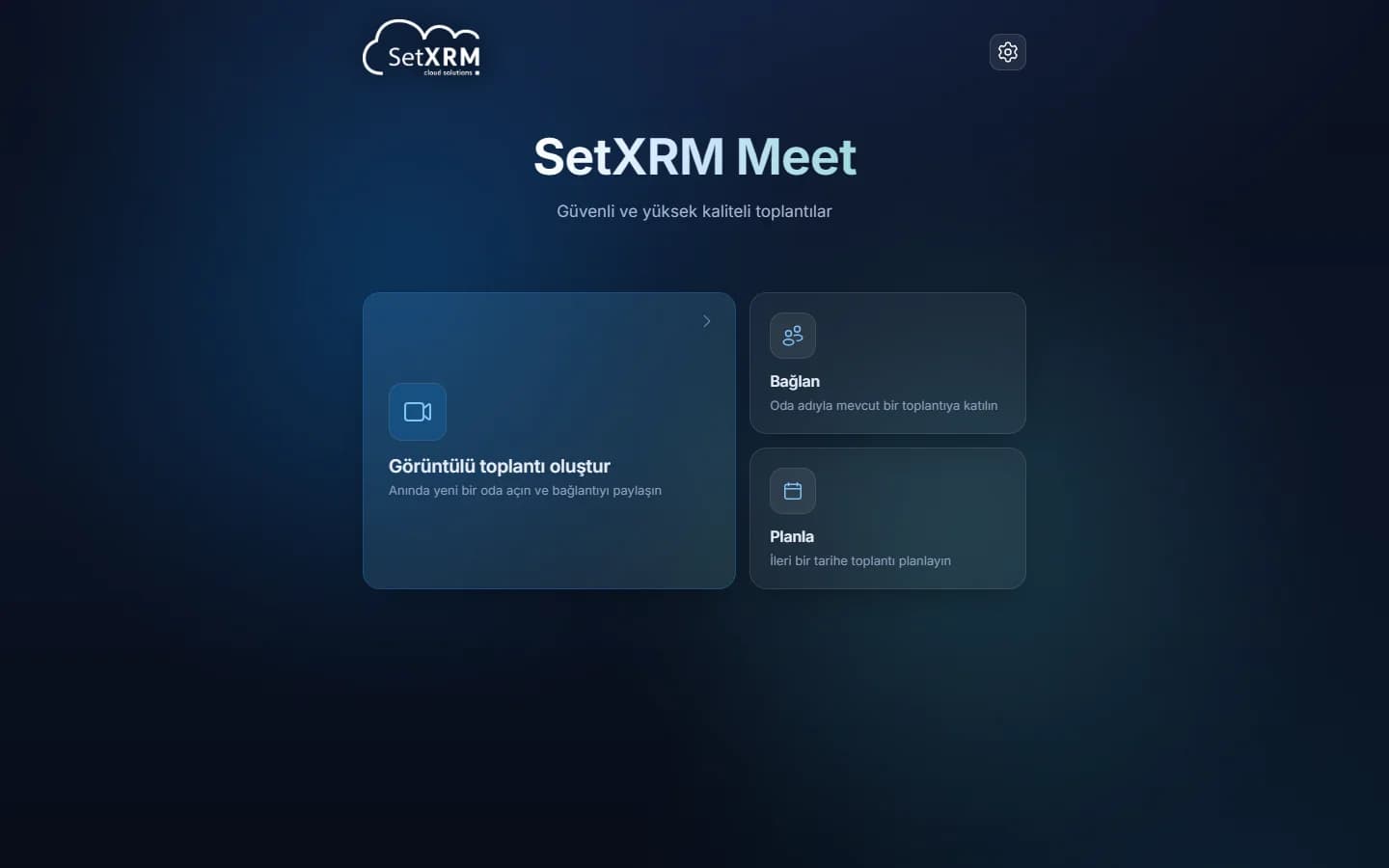
Create a video meeting
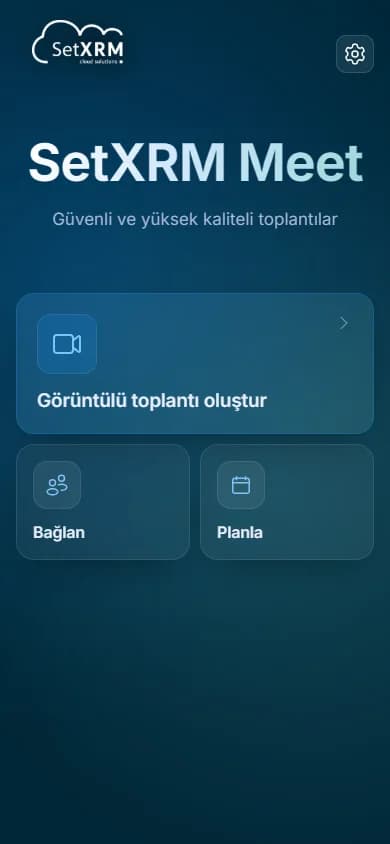
One click opens a new room; just share the link with participants.
Connect
Join an existing meeting with the room name you received.
Schedule
Schedule the meeting for a later date.
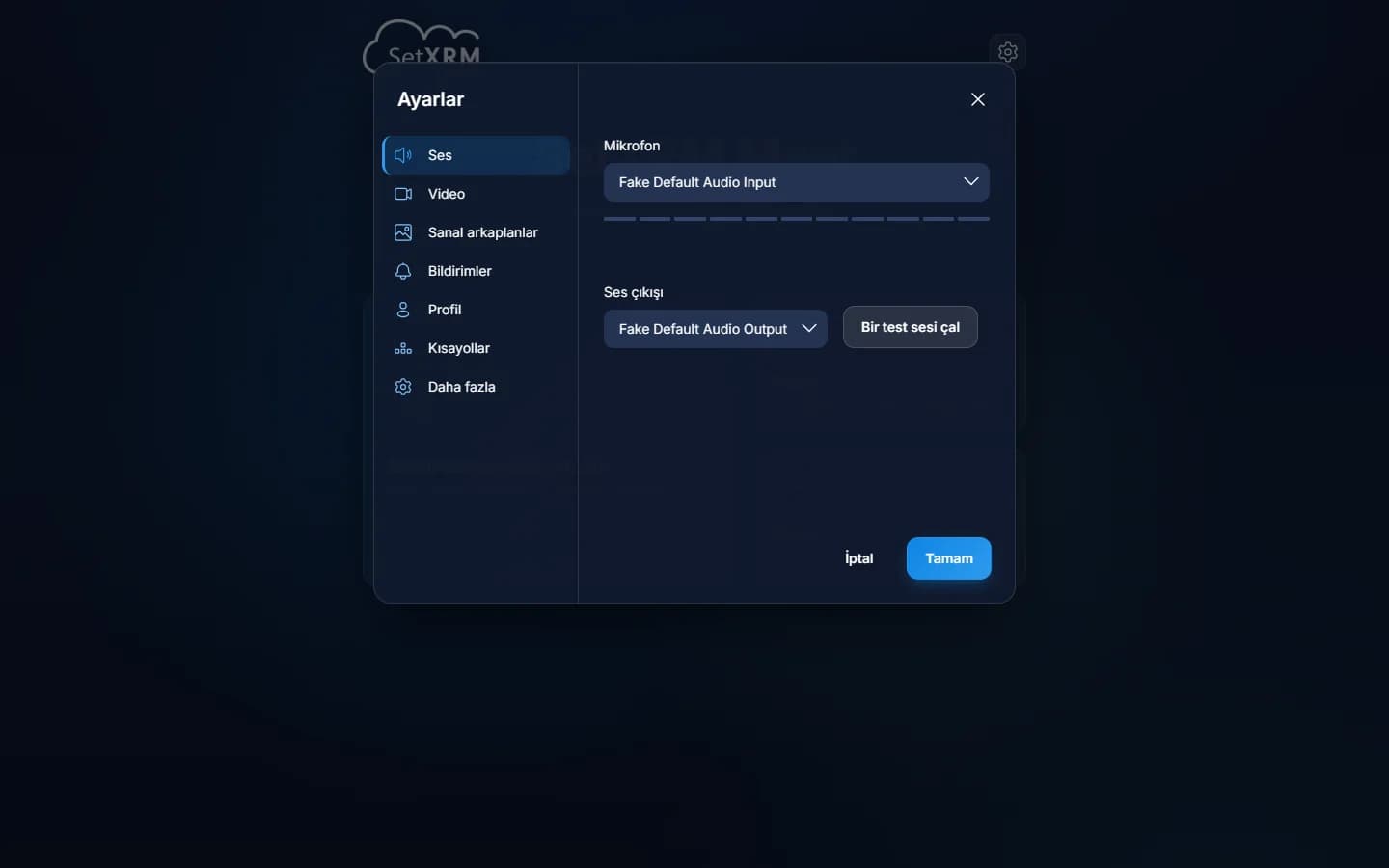
Settings
Check microphone, speaker and camera before the meeting.
Create, join or schedule a meeting
When you open meet.setxrm.com you get three options: open a new room instantly, connect to an existing meeting by room name, or schedule a meeting for later.
Step by step
1. Start a meeting
Open meet.setxrm.com in your browser. Nothing to install – a current version of Chrome, Edge, Firefox or Safari is enough.
- Create a video meeting: a new room opens instantly
- Connect: join with the room name you received
- Schedule: plan the meeting for a later date
Step by step
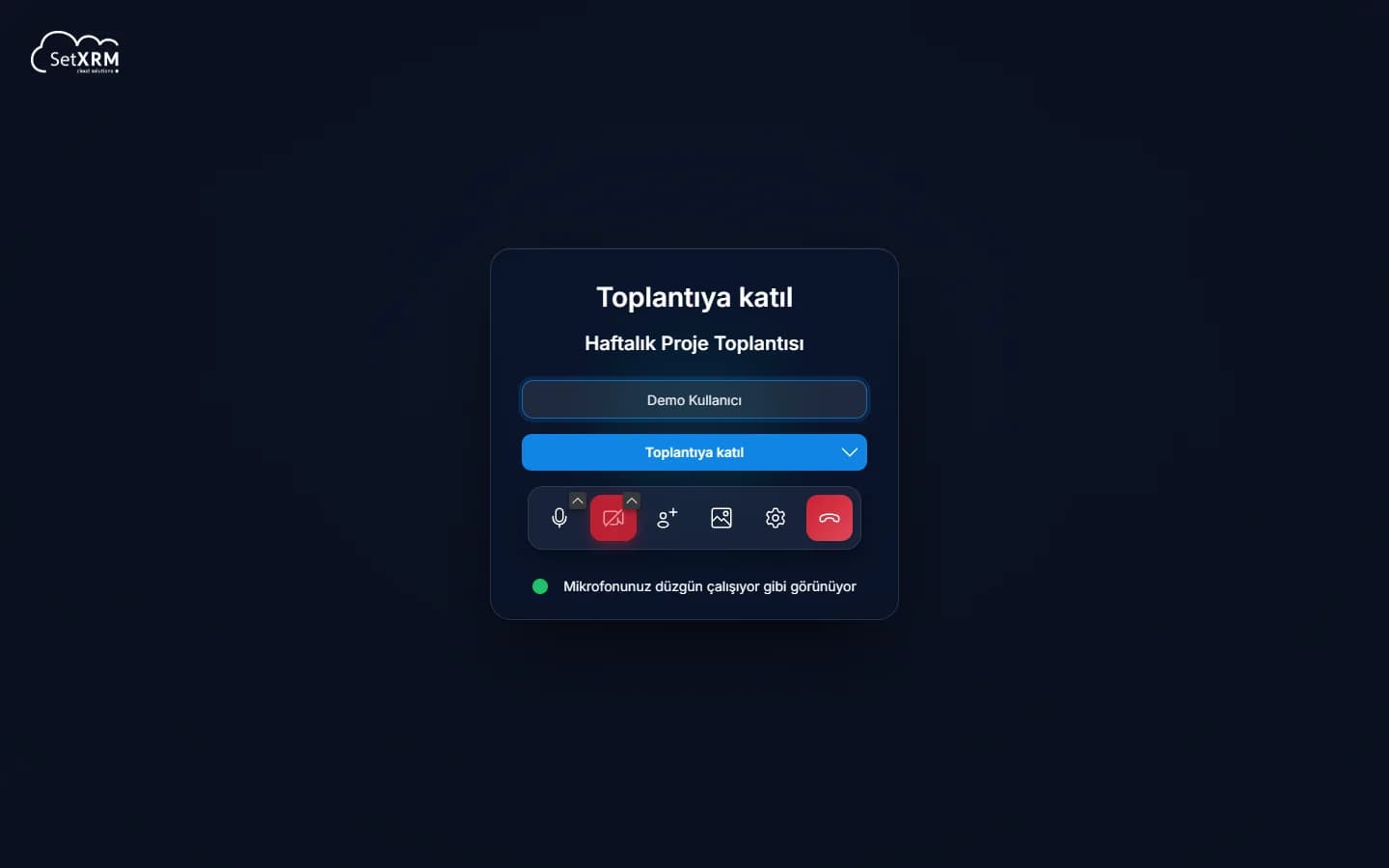
2. Join screen
Type your display name and click Join meeting. The first time, your browser asks for camera and microphone permission; without it, no audio or video is transmitted.
- Switch microphone and camera on or off before entering
- Blur your background or pick a virtual one
- Microphone check: a green light shows your voice is picked up
Step by step
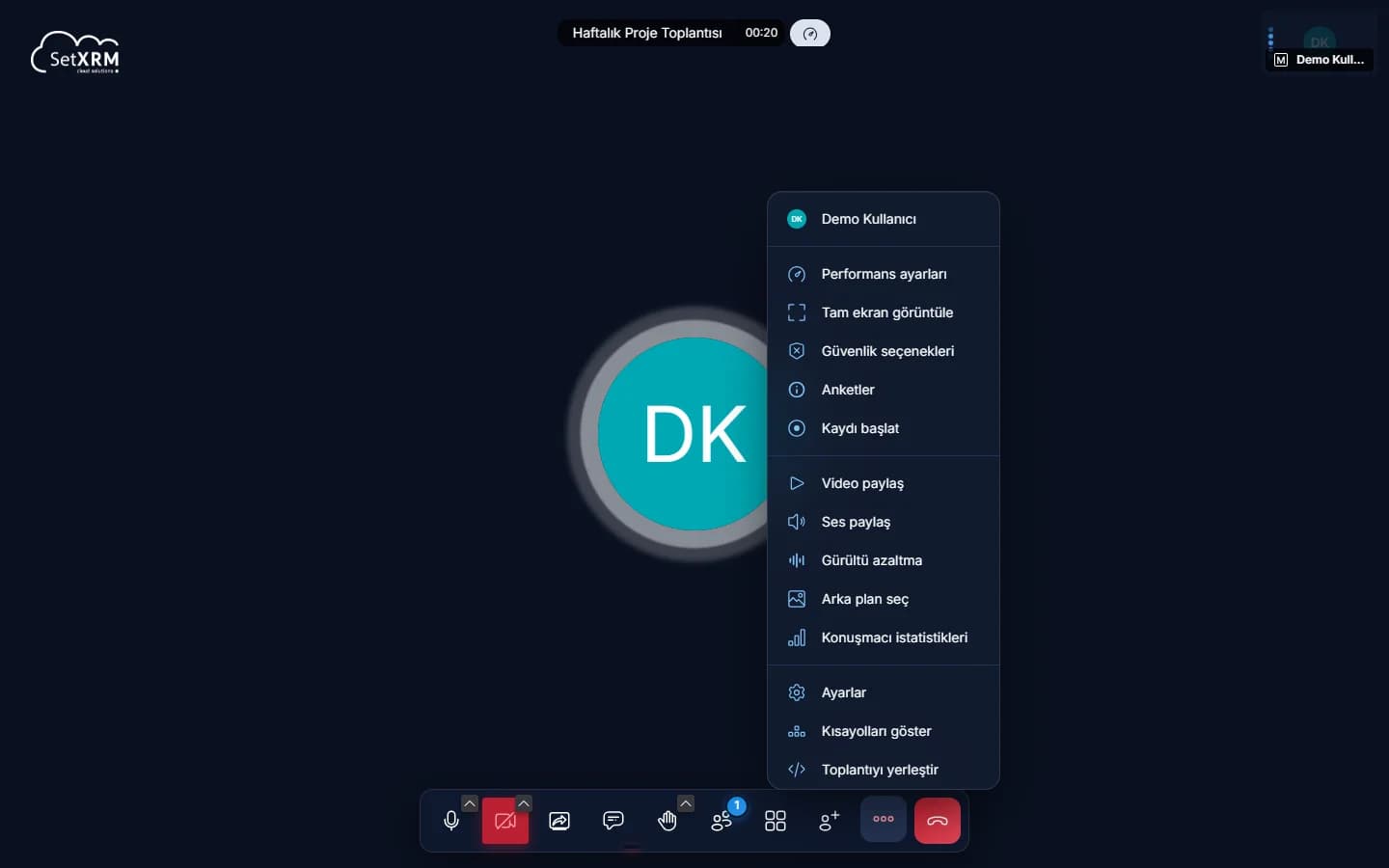
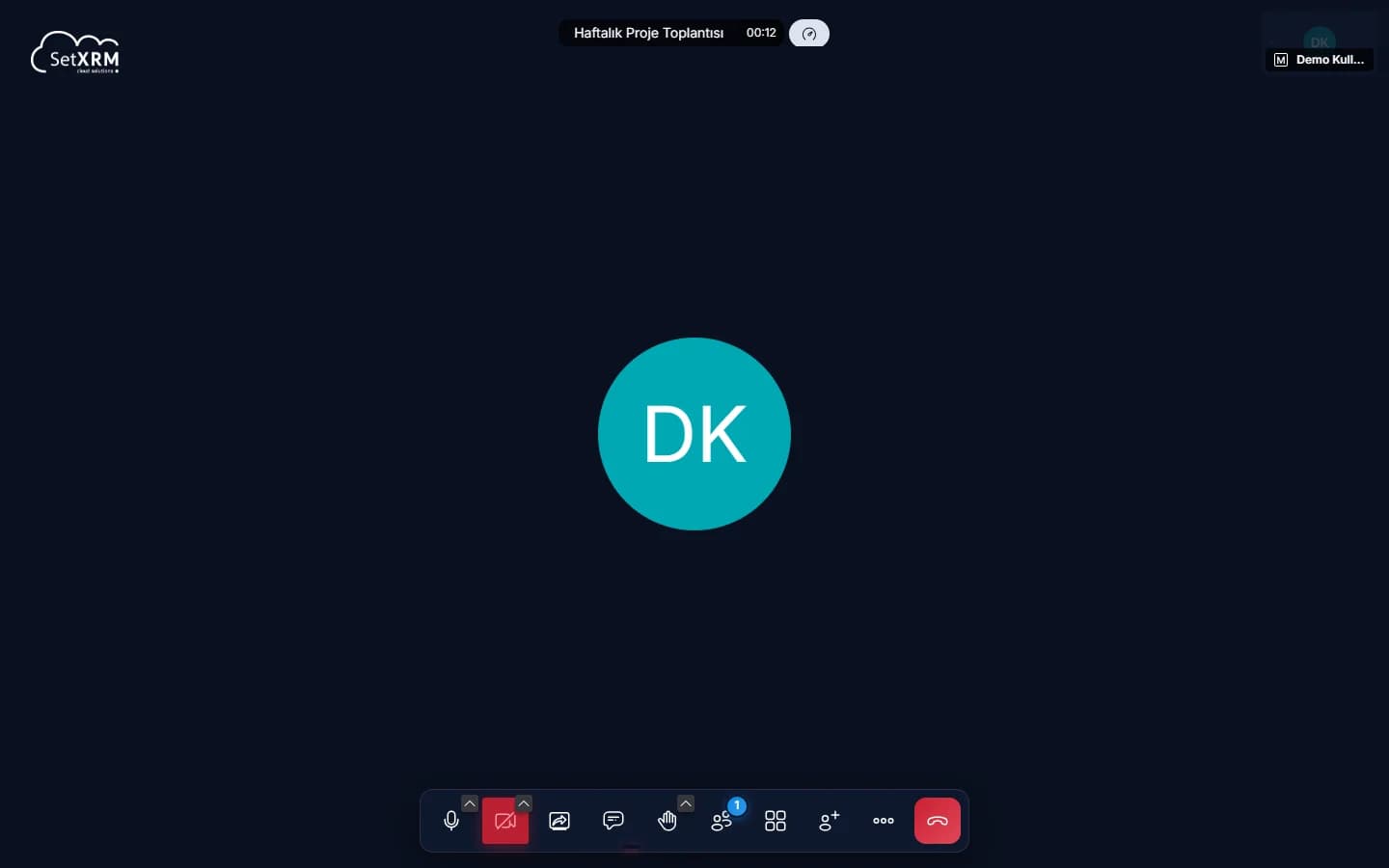
3. Meeting screen and toolbar
From left to right, the bottom toolbar offers:
- Microphone and camera (switch devices with the arrows)
- Screen sharing: whole screen, an app window or a browser tab
- Chat, raise hand and reactions
- Participants and tile (gallery) view
- Invite, more actions and leave
Step by step
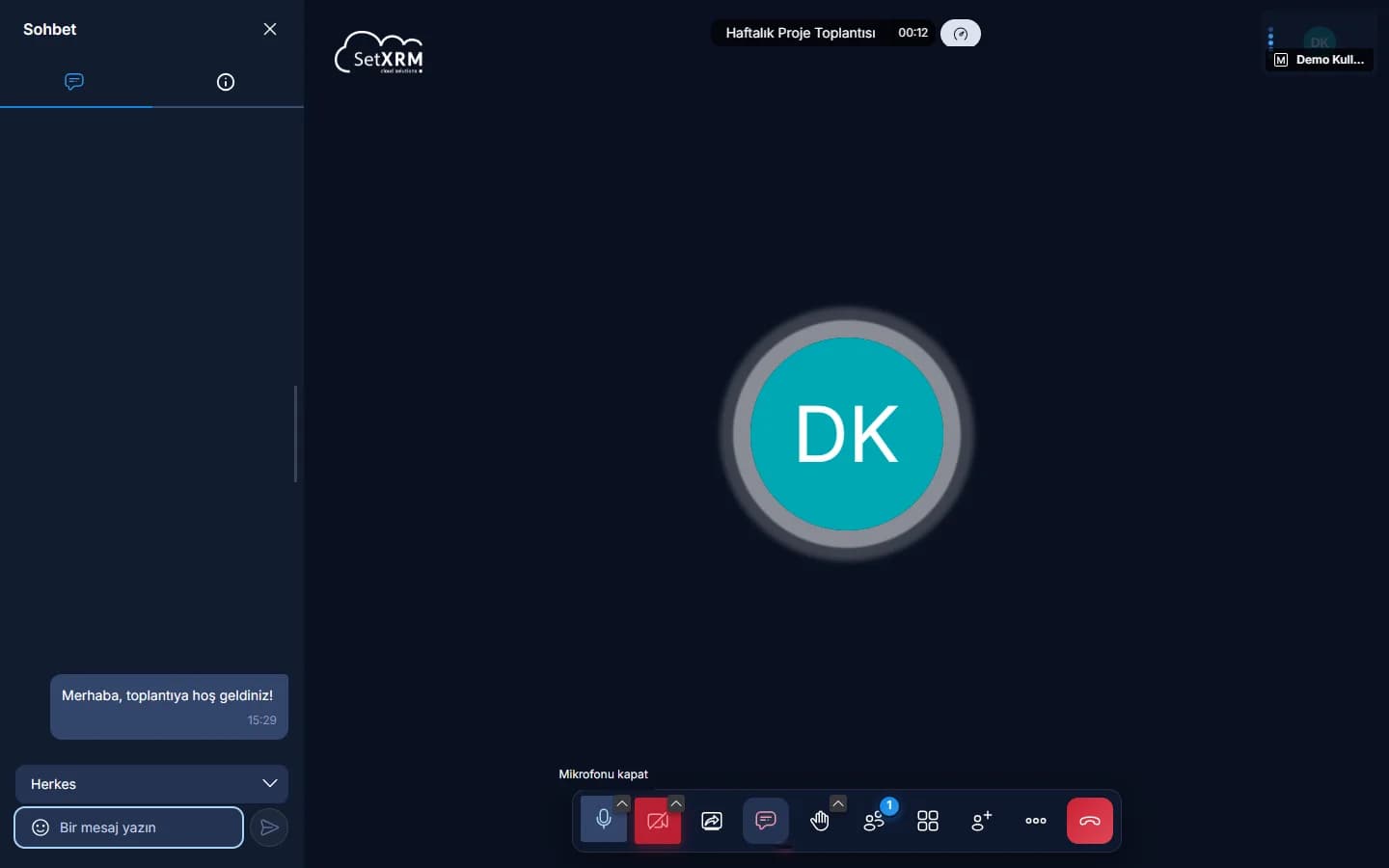
4. Chat and polls
Messages in the chat window are visible to everyone. For a private message, choose that participant instead of Everyone in the recipient list at the bottom. Use the panel's second tab to create a poll.
Step by step
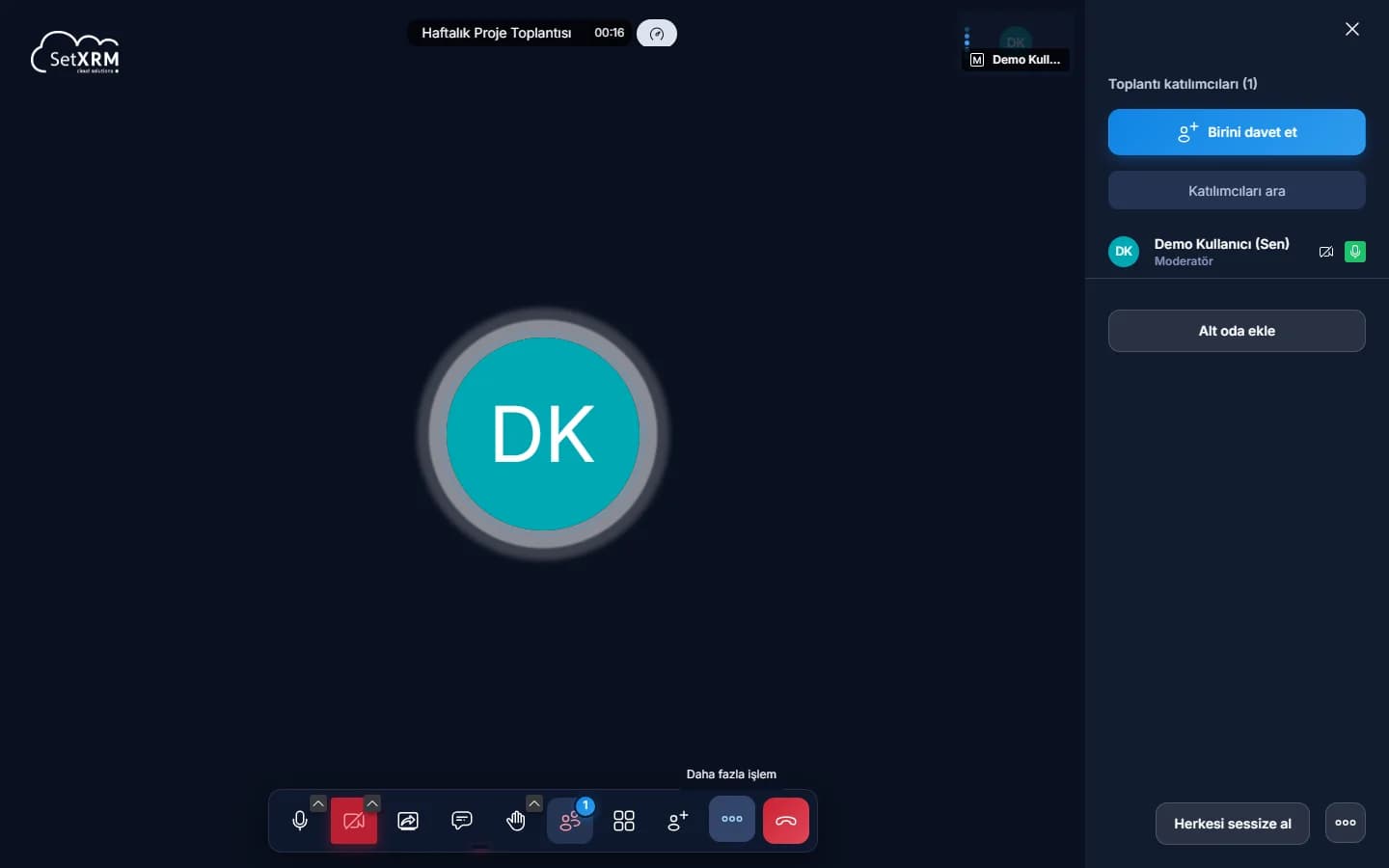
5. Participants and moderator tools
Whoever starts the meeting becomes the moderator and can manage people from the participants panel.
- Mute everyone and stop everyone's video
- Create breakout rooms
- Search and invite participants
Step by step
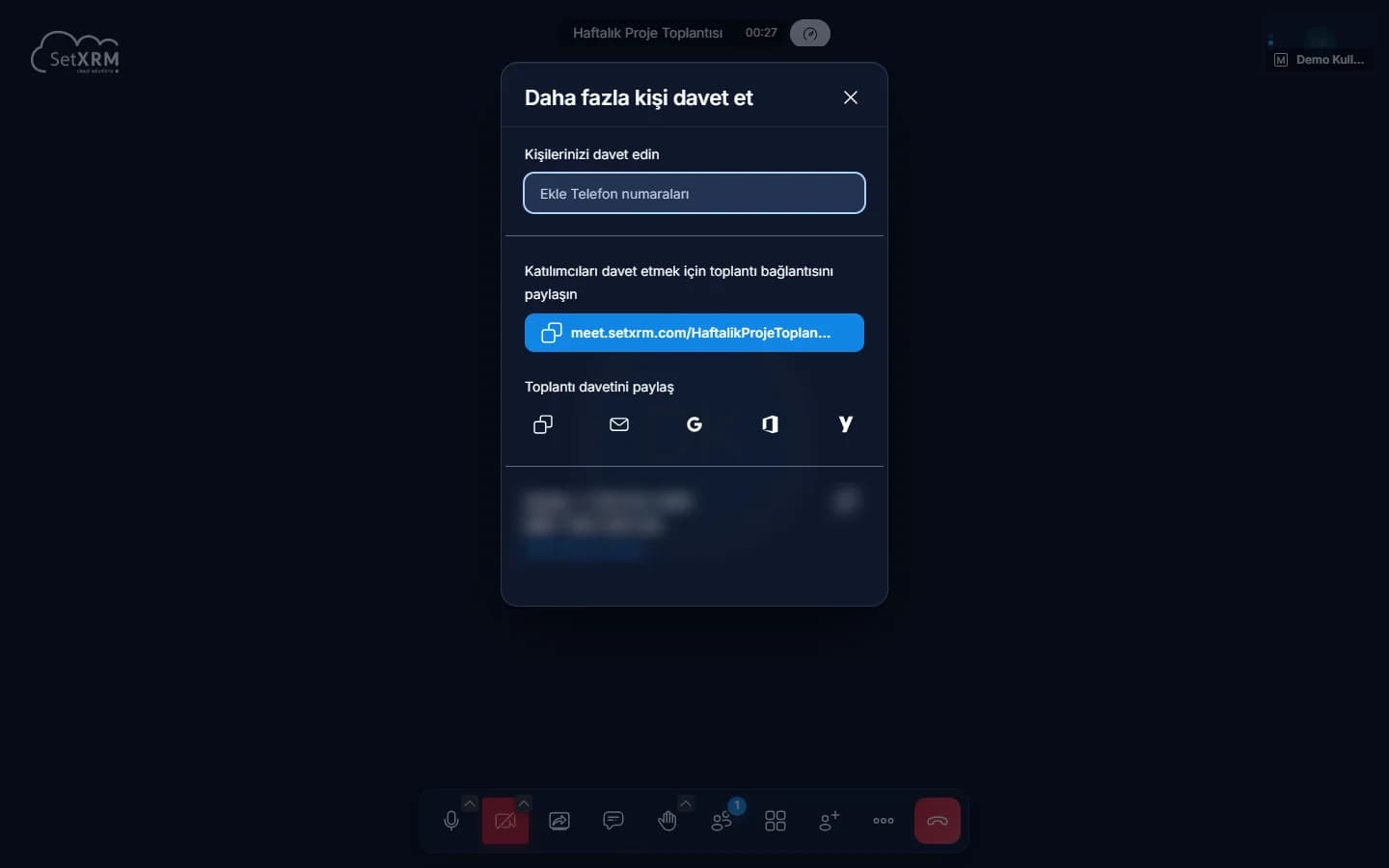
6. Inviting participants
Use Invite people to copy the meeting link and share it via WhatsApp, e-mail or any app. The invitation can also be added directly to Google Calendar and Outlook.
Step by step
Joining from mobile devices
To join from a phone or tablet, simply open the meeting link in your mobile browser – the interface adapts to small screens. Alternatively, install the Jitsi Meet mobile app and join with the same link.
Security
Your meetings under control
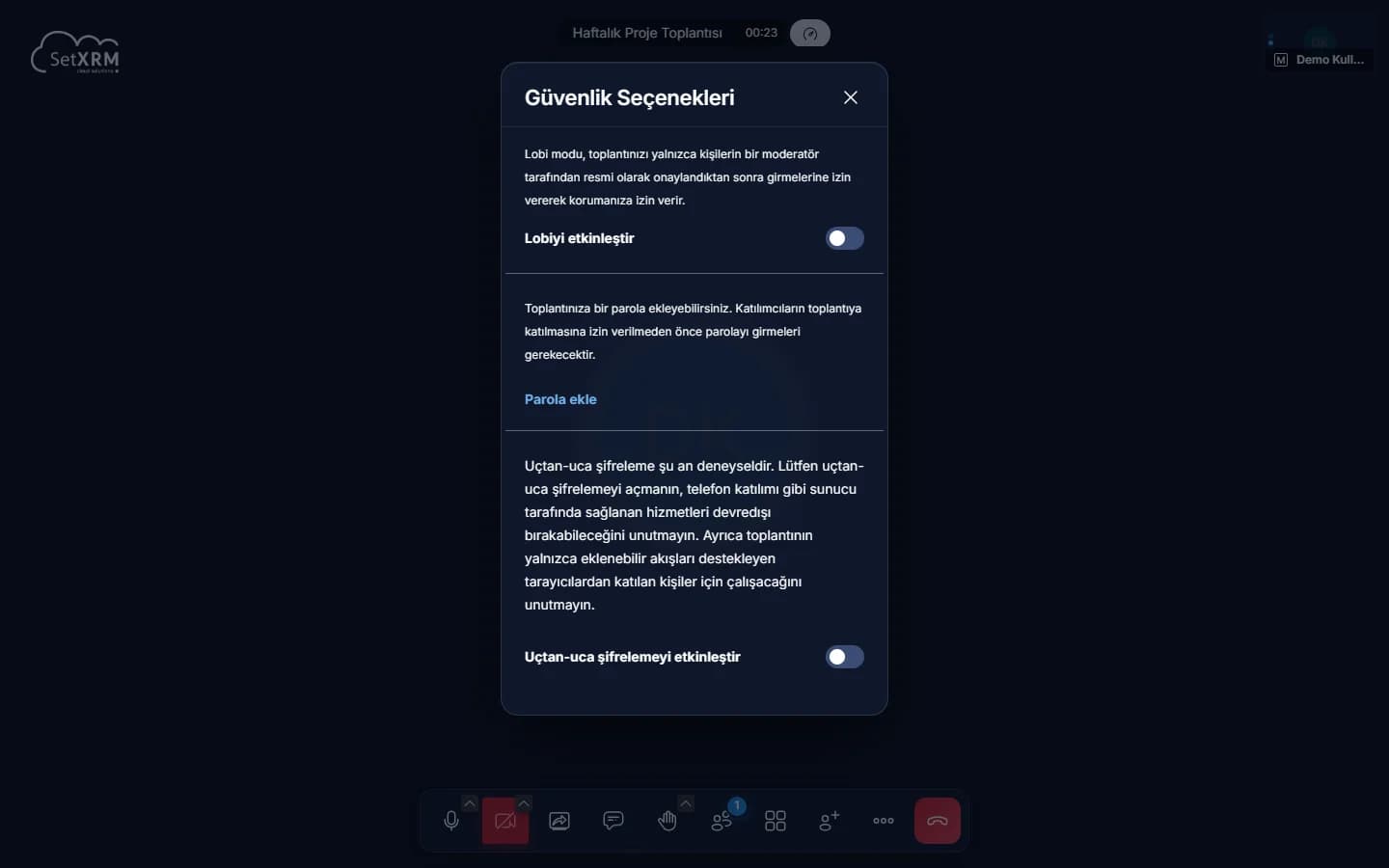
Lobby mode
Participants enter only with the moderator's approval.
Meeting password
People without the password cannot join.
End-to-end encryption
Can be enabled experimentally in supported browsers.
Moderator control
Mute everyone, stop videos and manage participants.